6.5.0: shortcuts and track charts

Guru Maps 6.5 is out for iPhone, iPad, Mac and Android. You can save your location and start or stop track recording without opening the app: from Siri, Shortcuts and Control Center on iOS, from Quick Settings, the widget and the recording notification on Android. Track photos and videos get an altitude or speed chart, and routes stand out on the map.
On iOS and Android
A chart on track photos and videos
Open a track, tap the share button and pick Share Photo or Share Video. Below the numbers there is now a chart: Altitude or Speed. Swipe the preview or tap the mountain and gauge icons to switch. The track line takes the colors of the chart, and the second number is the climb on the altitude page and the average speed on the speed page. A track that climbs or drops 150 m or more opens on altitude, a flatter one on speed.
Our climb to the Trzy Korony in the Pieniny in Guru Maps for Android. A swipe on the preview switches the chart from altitude to speed and back.
The photo is now 3:4, the shape of a phone camera picture. Tap the round button left of Share to put a photo of your own behind the numbers and the chart instead of the map.
Routes that stand out
The route you plan or follow and a selected track have a thin dark edge, so they no longer blend into green forests and parks on topo maps. Altitude and speed colors are deeper, and route balloons are easier to read.
Save and record from the app icon
Touch and hold the Guru Maps icon to save your location or to start or stop recording. The second item switches between Start recording and Stop track recording by itself.
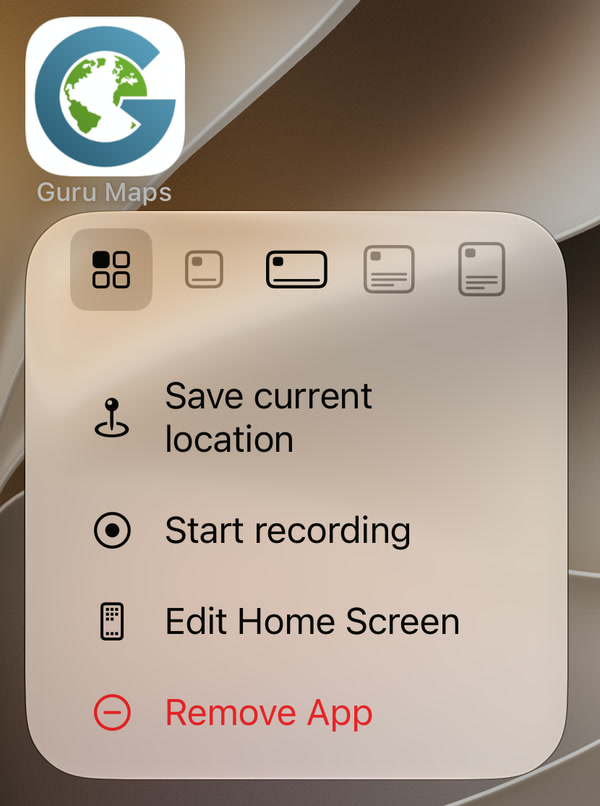
A marker saved from outside the app lands where you are now, not where Guru Maps last saw you before it was closed. If Guru Maps is already on screen, the map keeps following you in the mode you chose.
Open the map in driving mode
The link guru:?tracking=driving opens Guru Maps with the map in driving mode, and guru://recordTrack?action=start&tracking=driving also starts recording. off, location and compass work too: the same modes as the Location button. All values are in the Guru Maps API.
We don't change how Guru Maps starts by itself. If you've never used driving mode, the map still opens the way it always did.
Several markers from the clipboard
Copy a list of coordinates, one per line, and open Guru Maps: it offers to create all of them as markers at once and shows them on the map. Your clipboard stays as it was, and Guru Maps asks about the same text only once. On Android 10 and later, the offer works again. You can turn it off in Settings → Privacy → Allow Clipboard Access.
What's new on iOS
Siri, Shortcuts and the Action button
Save current location, Start recording and Stop track recording are now ready-made shortcuts. You don't need to build anything: they are in the Shortcuts app under Guru Maps, in Spotlight and in the list for the Action button. Siri knows them as "Save my location in Guru Maps", "Record a track in Guru Maps" and "Stop recording in Guru Maps".
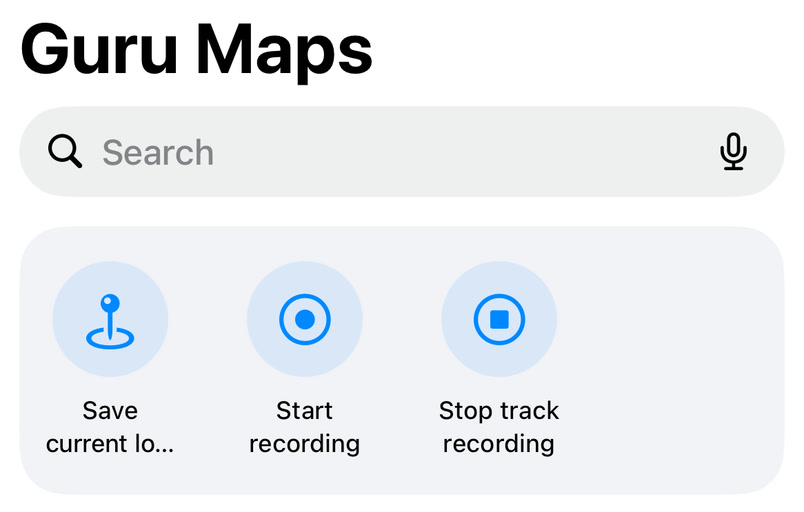
They now work in the background when they can:
- Save current location saves a marker without opening Guru Maps while you record a track, or whenever Guru Maps may use your location Always.
- Start recording starts a track in the background with the Always permission.
- Stop track recording always works in the background.
When an action needs the app, Guru Maps opens and finishes the job, as before. The shortcuts you made with earlier versions keep working.
Driving mode when you get in the car
The new Open map action opens Guru Maps with the map in the mode you pick: Off, Location, Driving or Compass. Start recording got the same option, so one shortcut can start the track and turn on driving mode.
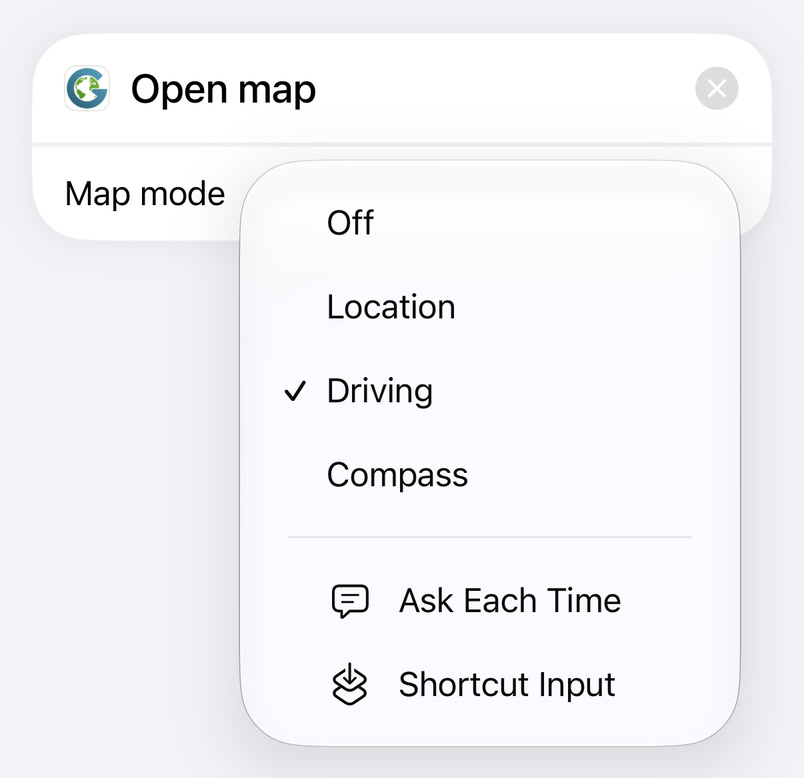
Put it into an automation and Guru Maps is ready before you are:
- In the Shortcuts app, tap Automation, then +.
- Choose CarPlay → Connects, or Bluetooth and your helmet headset.
- Choose Run Immediately and add Open map with Map mode set to Driving.
Control Center, Lock Screen and the widget
On iOS 26 and later, Guru Maps adds two controls: Save current location and a Track recording toggle that also shows whether a track is being recorded. Put them in Control Center, on the Lock Screen or on the Action button: open Control Center, tap +, then Add a Control and search for Guru Maps.
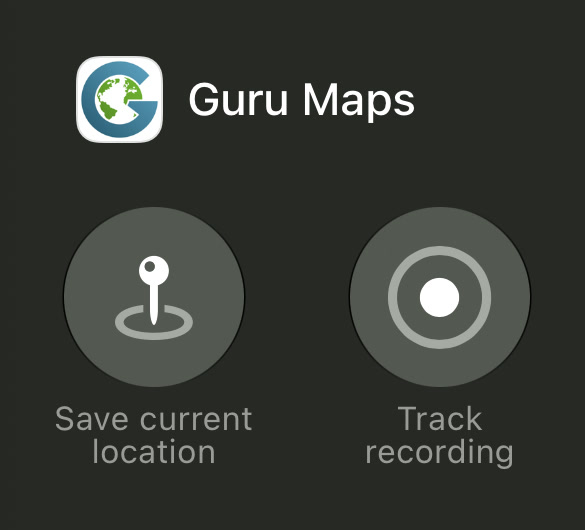
The buttons of the Track recording status widget and of the Live Activity you see while recording now work the same way on iOS 26 and later: a tap saves your location or stops the track without opening Guru Maps. On earlier versions of iOS they open Guru Maps, as before.
All the details are in the manual: Shortcuts and Siri.
What's new on Android
Quick Settings tiles
Guru Maps adds two tiles to Quick Settings: Track recording and Save current location. Swipe down from the top of the screen twice, tap the pencil and drag them into the panel. Track recording is on while a track is being recorded, wherever you started it.
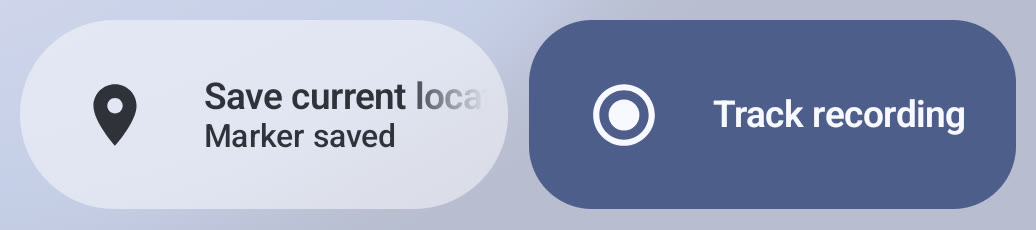
- Save current location saves a marker without opening Guru Maps while you record a track. Otherwise Guru Maps opens and saves it: Android gives a closed app your location only a few times an hour.
- Track recording starts a track in the background on Android 17 and later, and on earlier versions when Guru Maps has the location permission Allow all the time. Otherwise Guru Maps opens and starts recording.
- Stopping a track always works in the background.
The widget and the recording notification
While you record a track, Save on the large Guru Maps widget saves your location without opening the app and shows a green checkmark. REC starts and stops recording, as before.
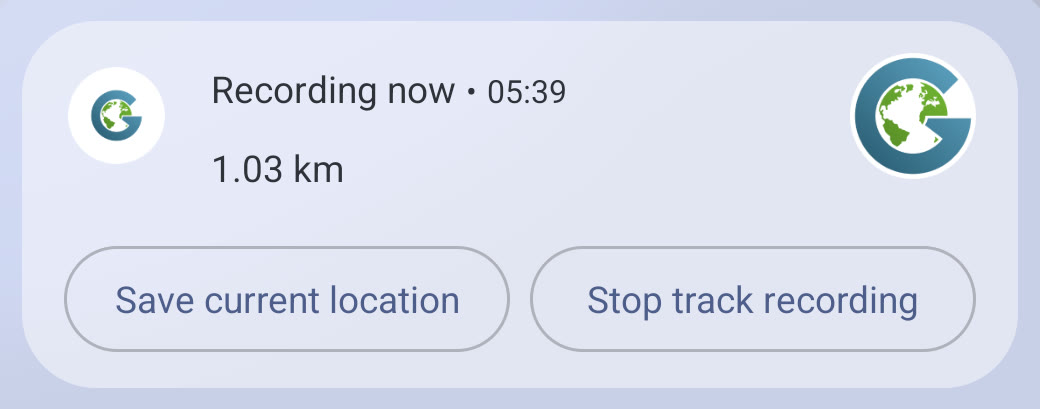
The recording notification shows the distance and the time and has two buttons: Save current location and Stop track recording. On Android 16 and later, it is a Live Update: the distance also stays in the status bar.
Get the update
Update Guru Maps from the App Store or Google Play. On Android, you can also download the APK from our download page. We'd love to hear how 6.5 works for you in our Telegram chat.